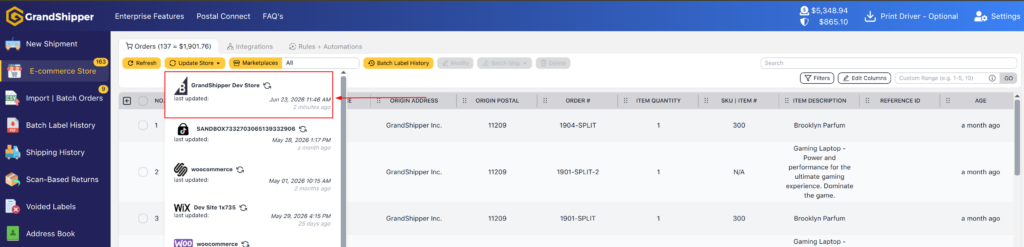







1. Go to “E-Commerce Store” page located on the left-hand menu.
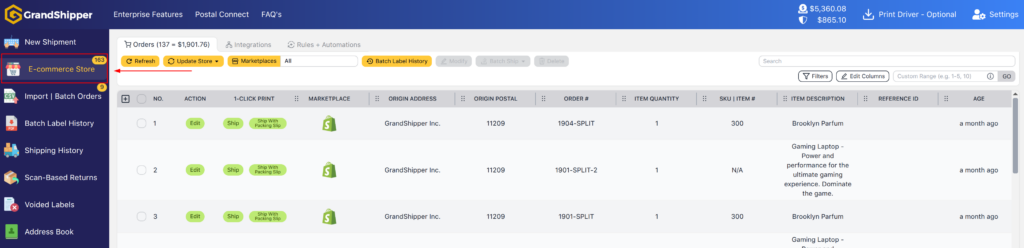
2. Click on the “Integrations” tab.
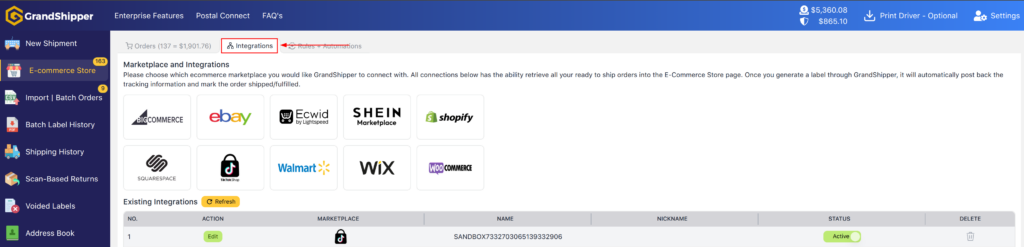
3. Click on the BigCommerce icon which will redirect the webpage to the BigCommerce log in page.
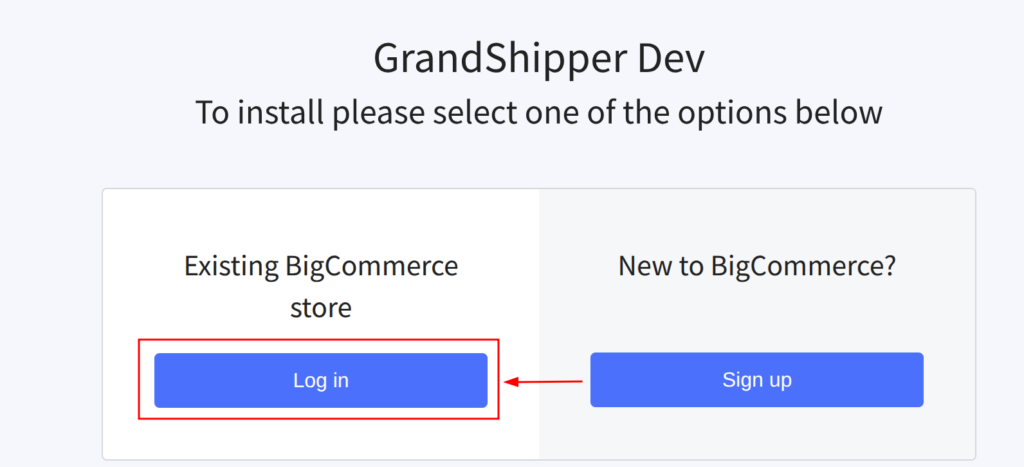
4. Click the Log In button under “Existing BigCommerce store”
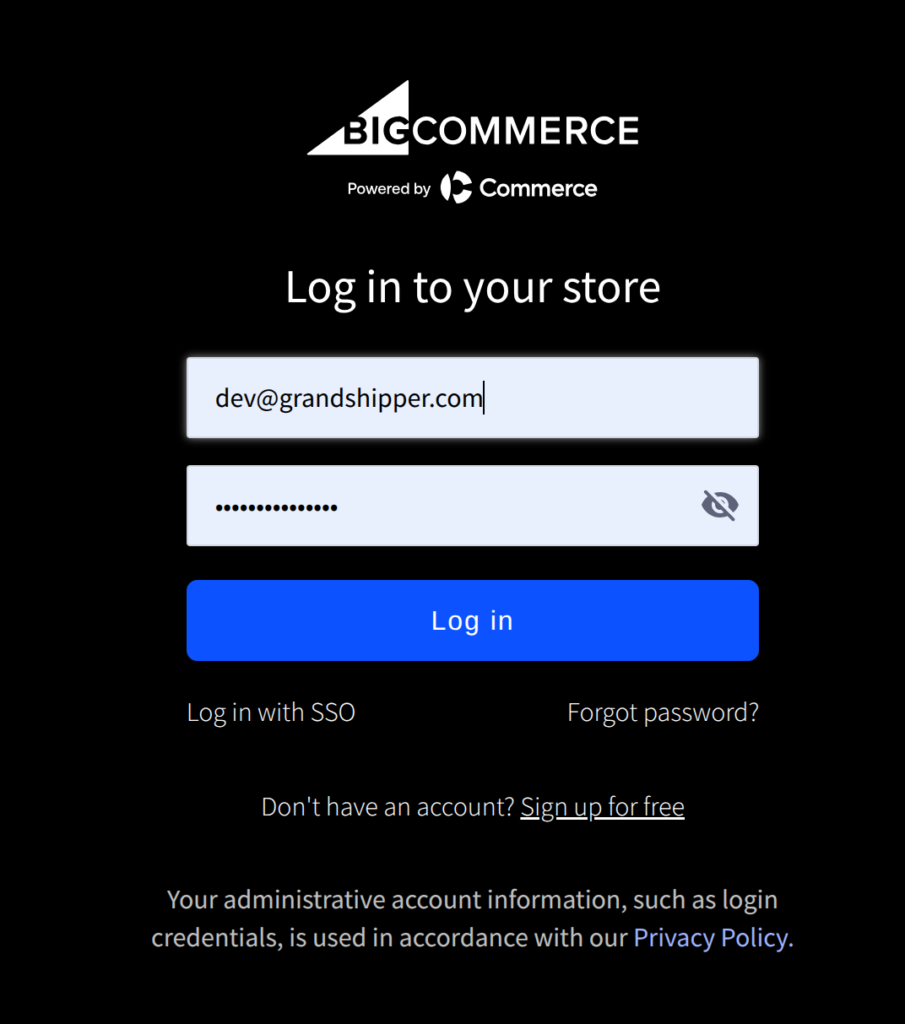
5. Log In with your BigCommerce store account.
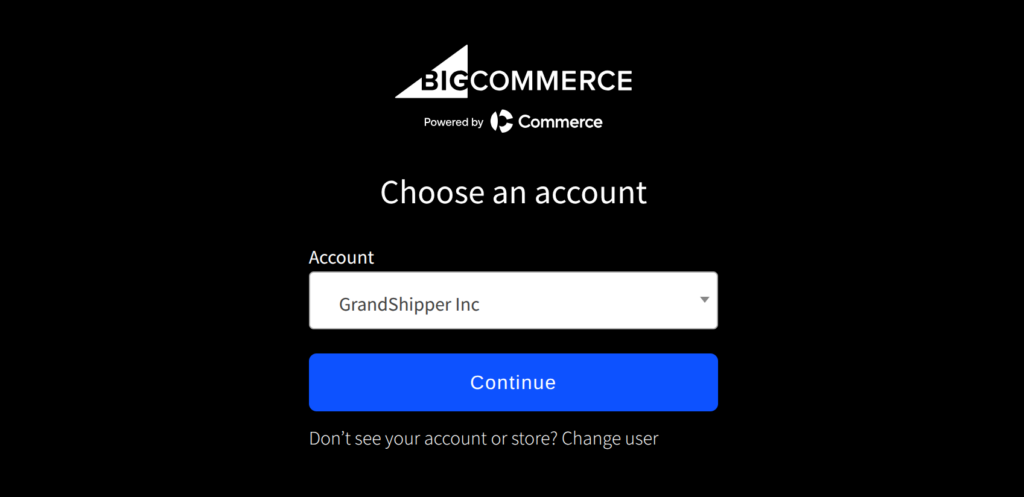
6. This screen might not appear on your end but if it does, please choose the appropriate account.
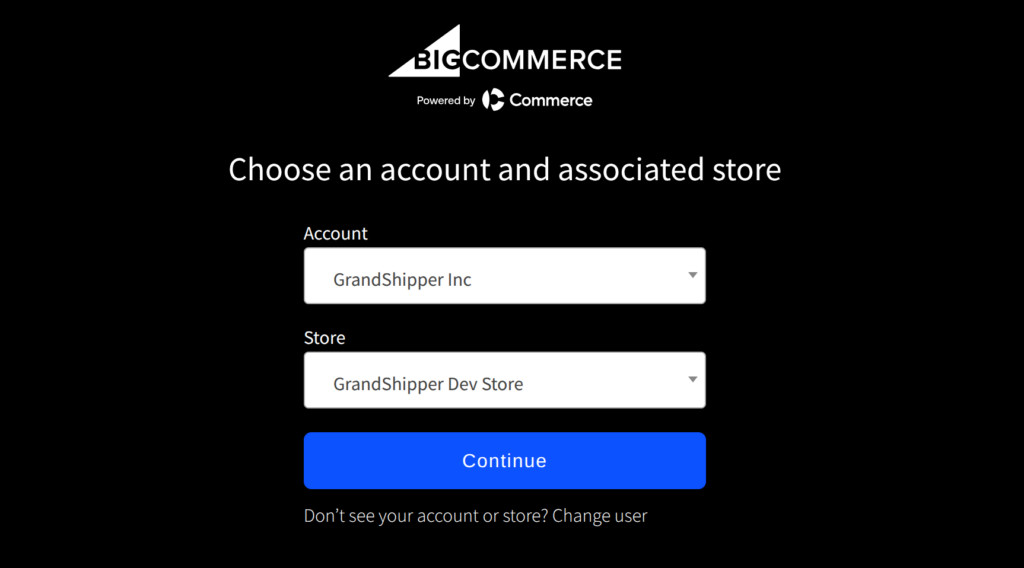
7. This screen might not appear on your end but if it does, please choose the appropriate account and store.
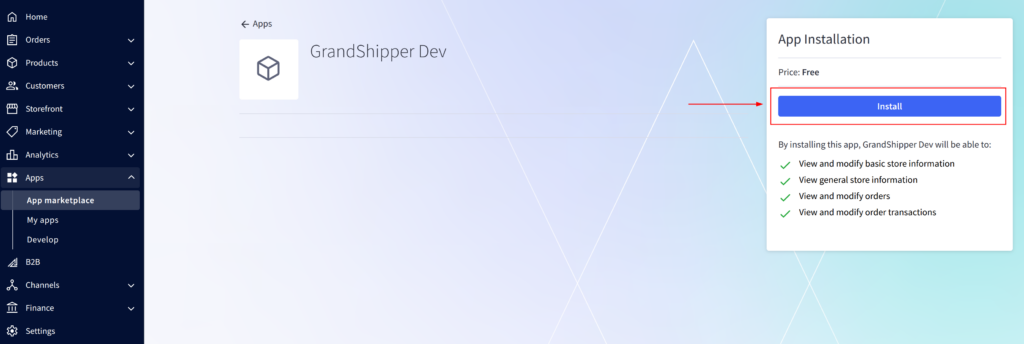
8. Review the permission needed and click the Install button.
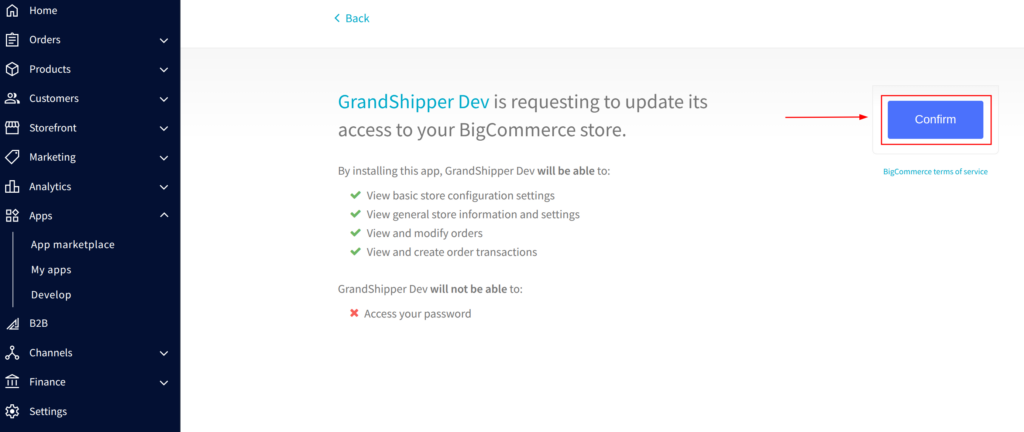
9. Review the permission needed and click the Confirm button.
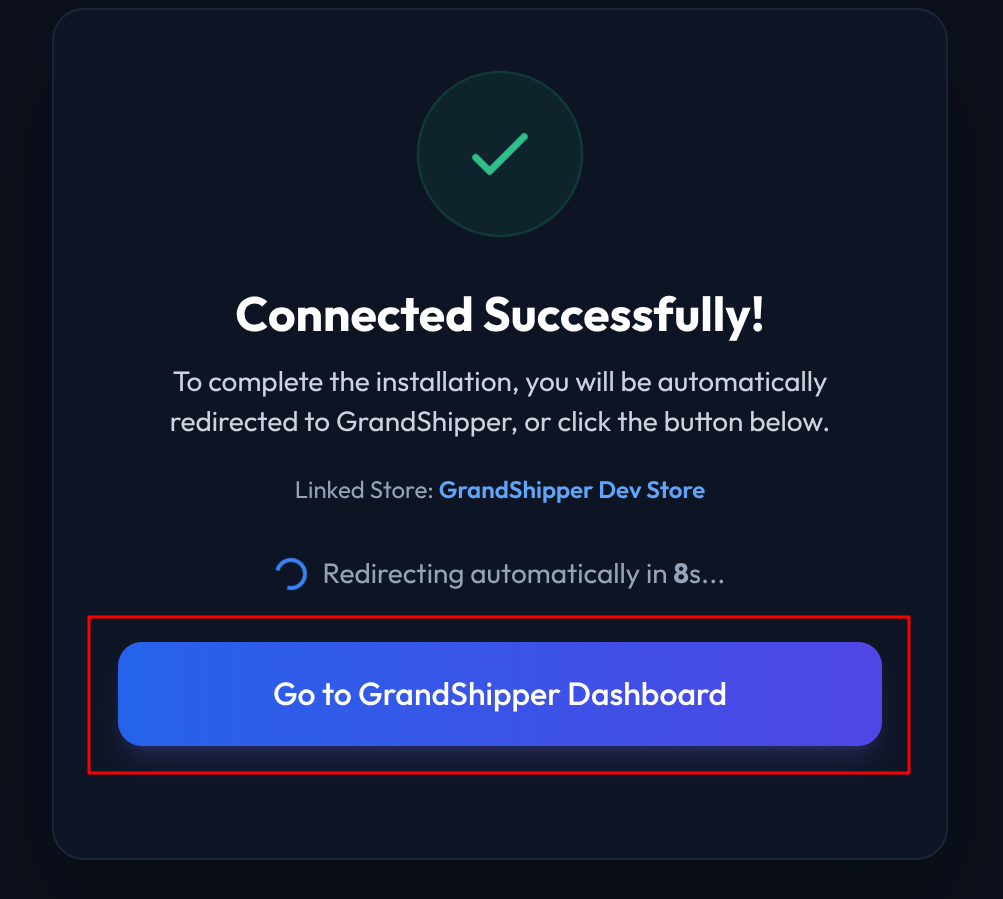
10. Once the authorization is done, please wait for 10 seconds and it should automatically take you back to GrandShipper to complete the installation. You can also click the “Go to GrandShipper Dashboard” to redirect back to GrandShipper.
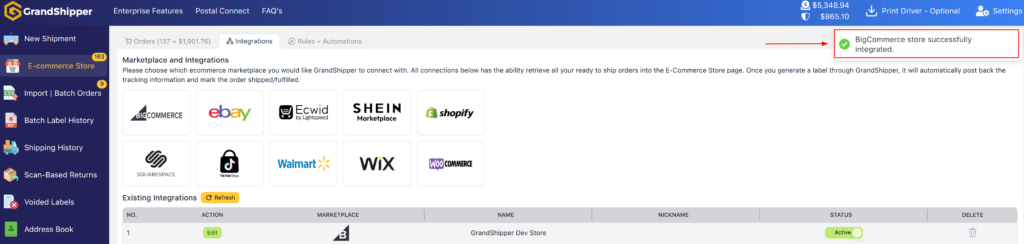
11. The page will auto-redirect to GrandShipper. If you’re quick, you’ll see a top-right notification saying “BigCommerce store successfully integrated.” and your store will be listed.
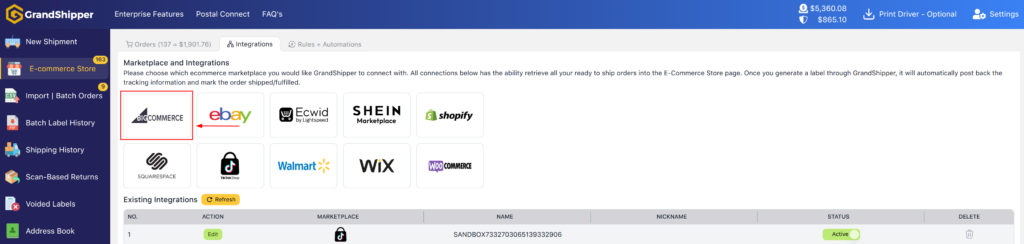
12. Click on the “Orders” tab.
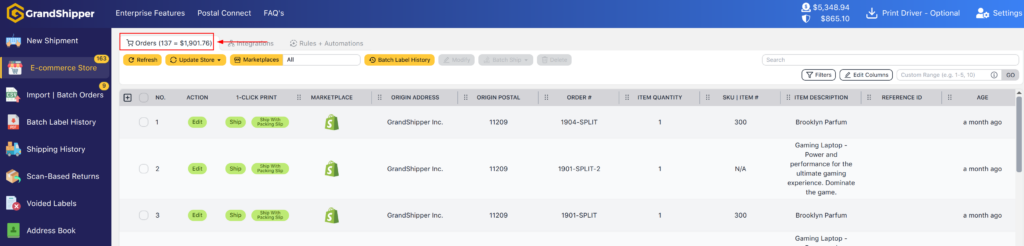
13. Click “Update Store,” select your BigCommerce store, and it’ll pull any Ready To Ship orders. Need help? Email support@grandshipper.com.